
In case you are not sure what date you have scheduled for your Facebook or Instagram story, you can check the scheduled date and time in the Content section of Meta Business Suite. This is where the published Stories content can be found. Let’s see how to change the date or delete the scheduled story if needed.
Navigate to the Stories Content Section
In the Content menu, go to Stories section

Stories section has 3 tabs: Posted, Scheduled and Archived. Click on Scheduled and see the time you have set

How to reschedule, delete or post scheduled Stories
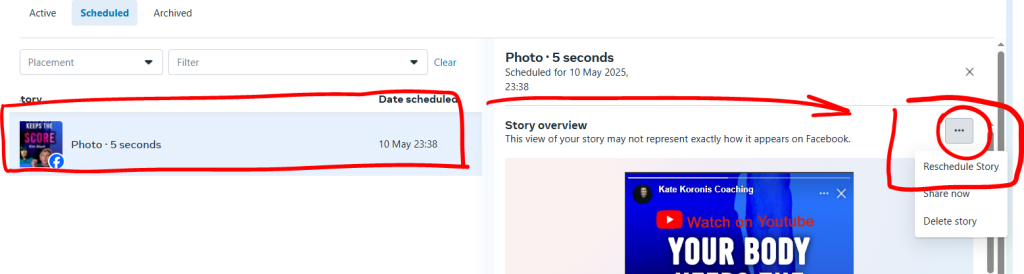
If your scheduled date or time is incorrect, there is a way to fix it: you can do it in the Preview Pane. For this, you need to select the story you want to correct or delete.
You can reschedule your story, share now or delete.
How to check if the Story has been published properly (the links are working)
After the story has been released according to the schedule, you can check the experience your followers have when they click the link in Stories.
Tip: You can’t check the link posted to stories in Facebook as a Swipe Up if you are viewing it as a Page administrator. You need to switch to your personal Facebook account or another Page to experience your post.