
Meta Business tools allow users to schedule Stories ahead, which increases our productivity and online presence. Let’s see how to post a Facebook Story with the link, also called “Swipe up link”. This publication type can be useful when you need to schedule a YouTube video premiere and guide your followers through Stories.
We will start from the Home Page of your Meta Business Suite
Note: If you have multiple business portfolios (more than one page), ensure you select the page you need in the drop-down menu

Step 1: Click on the “Create Story” button
This will take you to the Story page

Step 2: Select only the Facebook Page from the drop-down menu

You will need to deselect the Instagram account to publish a Facebook story with a Link, because Facebook and Instagram stories have slightly different workarounds for publishing links in stories. For this reason, we post stories individually in this instance.

Step 3: Upload the Image you will publish to Facebook Stories
To upload the image, you have two options:
- Click on the “Add photo/video” button and select the image in your folders or
- Drag and drop the image you would like to post from your open folder to the media box of your story

Step 4: Click on “Add link” after your image is uploaded
The uploaded image will appear in the preview pane

Tip: The link that will be added to the image you uploaded might not be visible to your viewer. To draw attention to it, we usually use the text “Swipe up” in our graphics design.

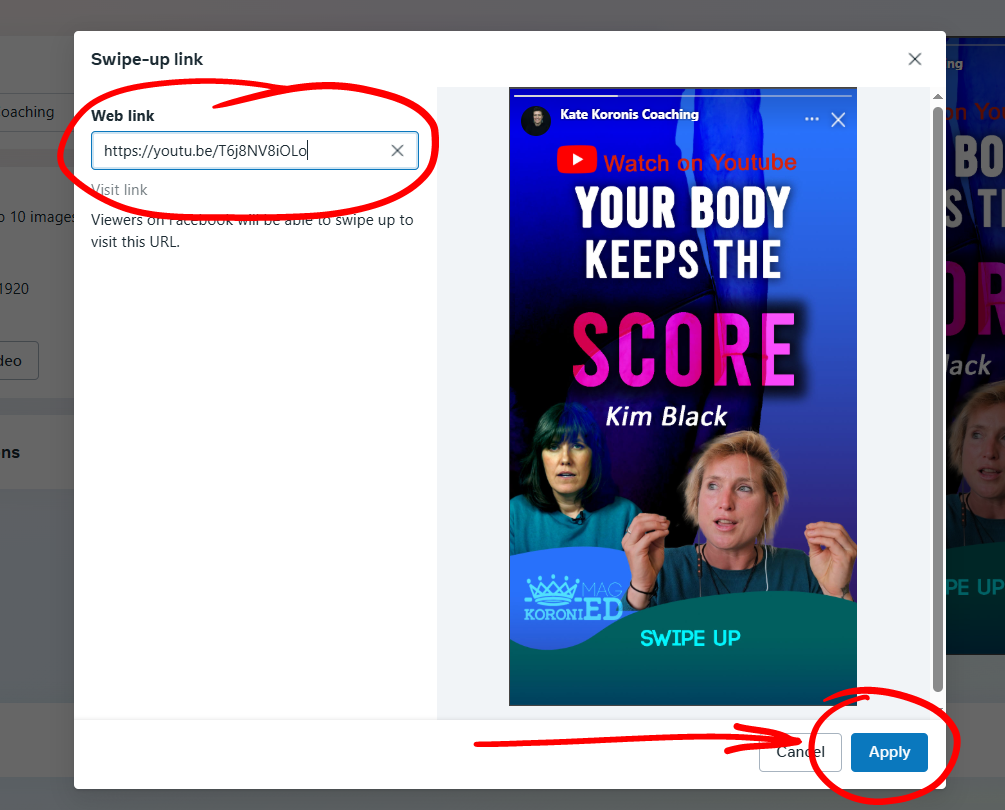
Step 5: Insert the link to your web page and click Apply
The new window will open, which will allow you to insert your link. If you want to send people to your YouTube premiere, insert the Premiere link
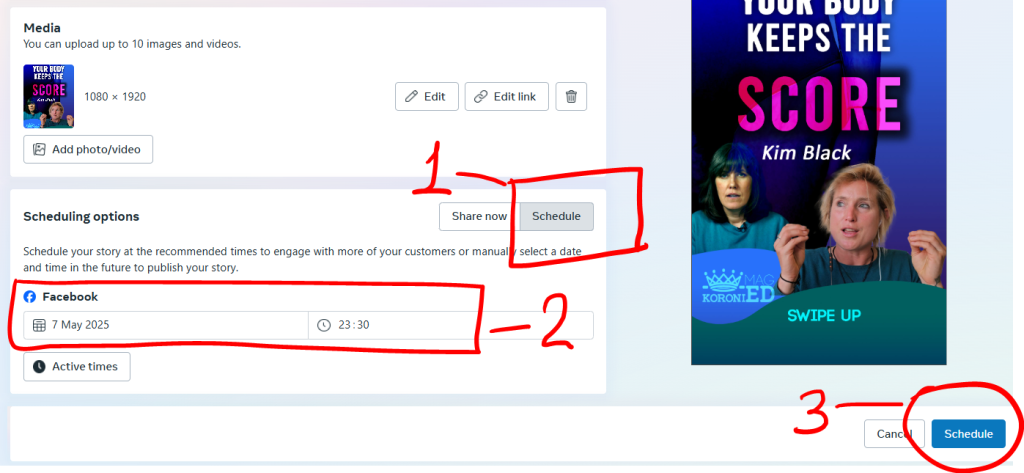
Step 6: Switch to the schedule and select the date and time to publish your Facebook story with the link
Click on the button “Schedule” and choose the time you want your Story to be posted. Click the blue button “Schedule” to complete the task.
Now your story is scheduled. Below you can see how the scheduled story will be seen In your portfolio’s content calendar.
Step 7: Check the stories scheduled day and time in the content calendar
In case you are not sure what date you have scheduled for your Facebook story, you can check the scheduled date in the section Content.
In the Content menu, go to Stories section

Stories section has 3 tabs: Posted, Scheduled and Archived. Click on Scheduled and see the time you have set

Now your story is scheduled. You can see how the scheduled story will be seen in your portfolio’s content calendar. See the tutorial here:
How to Check and Change the Stories Scheduled Time in Meta
And finally, as mentioned earlier, Facebook and Instagram stories have steps that differ a little bit when it comes to publishing them with the link. That is why here you can find instructions on how to publish an Instagram story with the Swipe up link via Meta (Business Facebook)