
If you premiere your YouTube video, whether you are setting up a Live Premier on YouTube or just releasing a new video, you need to know how to promote it. We advise approaching this systematically so that you know the steps for every video release or YouTube premiere.
YouTube Video Release Promotion Strategy
Here is what we suggest: Repurpose your Thumbnail design into different formats necessary to publish your video promotion as a banner on Facebook, Instagram and YouTube post feed.
Tip: Simply sharing your YouTube video link does not guarantee a good response from the audience. Many creators confirm that shared YouTube link goes unseen.
That is why we use banners that we post to Instagram and Facebook timeline with the invite to check the link in the Stories. Stories are only available for 24 hours, so anyone who misses the story or sees the post too late will not find the link. This reduces our YouTube views slightly. But same time, it creates the feeling of scarcity, limited access to our video, so the next time our followers will be more alert to the release. Thus, in the long run, this strategy helps us increase views.
Posting our banners to different platforms and feeds requires different banner formats. Let’s cover what they are.
Social Media Platforms Formats
We will start with the YouTube Thumbnail format as we take this particular design and repurpose it to other platforms.
YouTube Thumbnail
- Image Layout: Horisontal
- Image Dimensions: 1920×1080
- Max Size: 2MB
Simple banner with only text related to the topic of the video

YouTube Post
- Image Layout: Square
- Image Dimensions: 1080×1080
A simple banner with only text related to the topic of the video.
The post section allows using text, hashtags and YouTube links. For videos that include collaborations, there is a possibility of tagging other channels.
Use to invite your subscribers to the premiere with a direct link:
- Write why the video is important
- Add a call to action
- Add a few relevant hashtags (4-5)

Facebook & Instagram Banner
- Image Layout: Portrait
- Image Dimensions: 1080×1350
A simple banner with only text related to the topic of the video.
The post section allows using text and hashtags on both Facebook and Instagram posts. Links are not supported on Instagram; however, we are not using link sharing in this type of post, so we have all we need
Use to invite your followers to the premiere with the link in Stories:
- Write why the video is important
- Add a call to action
- Add a few relevant hashtags (4-5)

Facebook Story
- Image Layout: Vertical
- Image Dimensions: 1920×1080
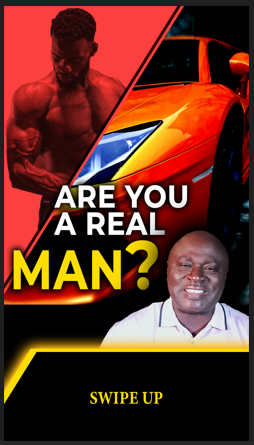
A vertical banner that has a Swipe Up call to action.
The Facebook Stories allow adding a link to follow.
Use to guide your Viewers to watch the YouTube video:
- Add a call to action as a part of your graphic design, “Swipe Up”
- Add a YouTube link of your Premier to the Swipe Up
Note: the instructions on how to schedule such a story are linked below.
Instagram and TikTok Story
- Image Layout: Vertical
- Image Dimensions: 1920×1080
A vertical banner that has a call to action or a blank space for an Instagram Sticker Link.
The TikTok Stories does not support the link, but you can have your YouTube linked in your TikTok bio. By seeing the banner, those who are interested will easily find the premier as it has a similar design.
Use to guide your Viewers to watch the YouTube video:
- Have a call to action in your graphics like “Available on YouTube”
- Add a YouTube link to the Instagram Sticker Link
Note: the instructions on how to schedule such a story are linked below in Premier promotion posting schedule section
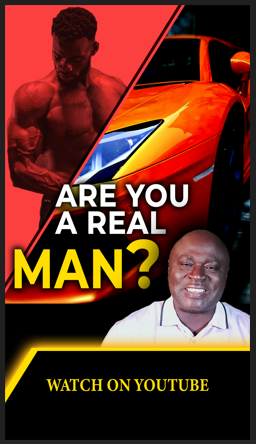
As a result of this preparation, you will have 5 graphic images that can be used across Facebook, Instagram and YouTube
Premier promotion posting schedule
When, what and how to post? Good question. Now that you know what graphics you need to have, follow the schedule.
| What to Schedule (post) | When to Post | How to Post |
|---|---|---|
| YouTube Premiere | Minimum 2 days before release (If you have more than one video ready, you can schedule the Premier for up to 5 videos ahead) | Tips and Instructions on Making a YouTube Premiere |
| YouTube Post | 1 day before or same date of the Premier | How to publish a YouTube post |
| Facebook and Instagram posts | 2 hours before the release | How to crosspost a banner to Facebook and Instagram |
| Facebook and Instagram stories | 2 hours before the release | How to Post Instagram Stories via Meta Business —————- How to Post Facebook Stories via Meta Business |
| TikTok stories | After the release | How to post a TikTok story (Currently, this instruction is only available in text form, without illustration or video – to be updated soon) |